> ## Documentation Index
> Fetch the complete documentation index at: https://schaltwerk.mintlify.site/llms.txt
> Use this file to discover all available pages before exploring further.
# Sessions & Specs
> Learn how sessions, specs, and lifecycle states work together
Schaltwerk revolves around isolated git worktrees and the lifecycle of each AI-driven session. This page covers how sessions and specs move between states, how the orchestrator supports planning, and how to reuse specs as a backlog.
## Sessions
Every running session is a dedicated git worktree branching from your repository. Two terminals come with each session so agents and humans can work side-by-side.
Each session gets its own git worktree and branch
Top terminal for the agent, bottom terminal for manual commands
Switch between sessions instantly—terminals stay alive in the background
Sessions appear in the left sidebar under **Agents**
Every worktree is its own copy of the repository on disk. Keep sessions short-lived and clean up finished work so the `.schaltwerk/worktrees/` folder doesn't grow without bound.
### Renaming Sessions
Double-click on a session name in the sidebar to rename it. The git branch will be updated to match the new name.
### Session Filters
Use the tabs at the top of the session list to filter what you see:
Shows all sessions regardless of state
Shows only draft specs (amber badge)
Shows active sessions with worktrees
Shows sessions marked as ready for merge
## Specs
 Specs are markdown documents that live in the orchestrator
Capture the desired outcome before any code is written
When started, the spec becomes the agent's first prompt
Specs carry an amber badge until you start them
Think of specs as reusable backlog cards. Start them when you're ready, and if a session isn't working out, press `⌘S` to discard the worktree, keep the spec intact, and retry later with new instructions.
### Spec Lifecycle
Write a markdown document describing the desired outcome
Convert the spec into a running session with worktree and terminals
The spec content becomes the agent's initial instructions
## Orchestrator
The orchestrator runs directly on your primary branch—typically `main`, but it can be a long-lived feature branch too—giving you a stable workspace for planning and coordination.
### Orchestrator Features
Draft multiple specs before launching sessions. Perfect for planning parallel work streams.
The orchestrator powers automation through the MCP REST API, enabling external tools to create and manage sessions.
Like regular sessions, the orchestrator has an agent terminal on top and your shell below.
Because the orchestrator operates inside your primary branch (no separate worktree), any commands you run there change that branch immediately. Use specs and sessions when you need isolation.
### Accessing the Orchestrator
```bash Keyboard Shortcut theme={null}
⌘1
```
```plaintext Sidebar theme={null}
Click "Repository (Orchestrator)" at the top of the sidebar
```
## Session States
**Drafting the work.** No worktree yet.
* Markdown document in the orchestrator
* Amber badge in sidebar
* Can be edited or deleted without affecting git
**Active session.** The session owns a worktree and active terminals.
* Git worktree created under `.schaltwerk/worktrees/`
* Two PTY terminals spawned
* Agent process can run in top terminal
* Magenta badge in sidebar
**Ready for merge.** The worktree is ready for integration.
* Code has been tested locally
* Green badge in sidebar
* Can still make manual edits in worktree
* Integration options:
* `⌘⇧M` - Direct merge to main
* `⌘⇧P` - Create GitHub pull request
### State Transitions
Transitions are explicit and user-controlled. The app never automatically changes session states.
**Keyboard:** `⌘N`
**Action:** Start Agent
**Result:** Creates worktree, branch, and terminals
**Keyboard:** `⌘R`
**Action:** Mark as Reviewed
**Result:** Flags session as ready for merge
**Action:** Convert to Spec
**Result:** Removes worktree but keeps spec content for later
### Lifecycle Scenarios
Specs are markdown documents that live in the orchestrator
Capture the desired outcome before any code is written
When started, the spec becomes the agent's first prompt
Specs carry an amber badge until you start them
Think of specs as reusable backlog cards. Start them when you're ready, and if a session isn't working out, press `⌘S` to discard the worktree, keep the spec intact, and retry later with new instructions.
### Spec Lifecycle
Write a markdown document describing the desired outcome
Convert the spec into a running session with worktree and terminals
The spec content becomes the agent's initial instructions
## Orchestrator
The orchestrator runs directly on your primary branch—typically `main`, but it can be a long-lived feature branch too—giving you a stable workspace for planning and coordination.
### Orchestrator Features
Draft multiple specs before launching sessions. Perfect for planning parallel work streams.
The orchestrator powers automation through the MCP REST API, enabling external tools to create and manage sessions.
Like regular sessions, the orchestrator has an agent terminal on top and your shell below.
Because the orchestrator operates inside your primary branch (no separate worktree), any commands you run there change that branch immediately. Use specs and sessions when you need isolation.
### Accessing the Orchestrator
```bash Keyboard Shortcut theme={null}
⌘1
```
```plaintext Sidebar theme={null}
Click "Repository (Orchestrator)" at the top of the sidebar
```
## Session States
**Drafting the work.** No worktree yet.
* Markdown document in the orchestrator
* Amber badge in sidebar
* Can be edited or deleted without affecting git
**Active session.** The session owns a worktree and active terminals.
* Git worktree created under `.schaltwerk/worktrees/`
* Two PTY terminals spawned
* Agent process can run in top terminal
* Magenta badge in sidebar
**Ready for merge.** The worktree is ready for integration.
* Code has been tested locally
* Green badge in sidebar
* Can still make manual edits in worktree
* Integration options:
* `⌘⇧M` - Direct merge to main
* `⌘⇧P` - Create GitHub pull request
### State Transitions
Transitions are explicit and user-controlled. The app never automatically changes session states.
**Keyboard:** `⌘N`
**Action:** Start Agent
**Result:** Creates worktree, branch, and terminals
**Keyboard:** `⌘R`
**Action:** Mark as Reviewed
**Result:** Flags session as ready for merge
**Action:** Convert to Spec
**Result:** Removes worktree but keeps spec content for later
### Lifecycle Scenarios
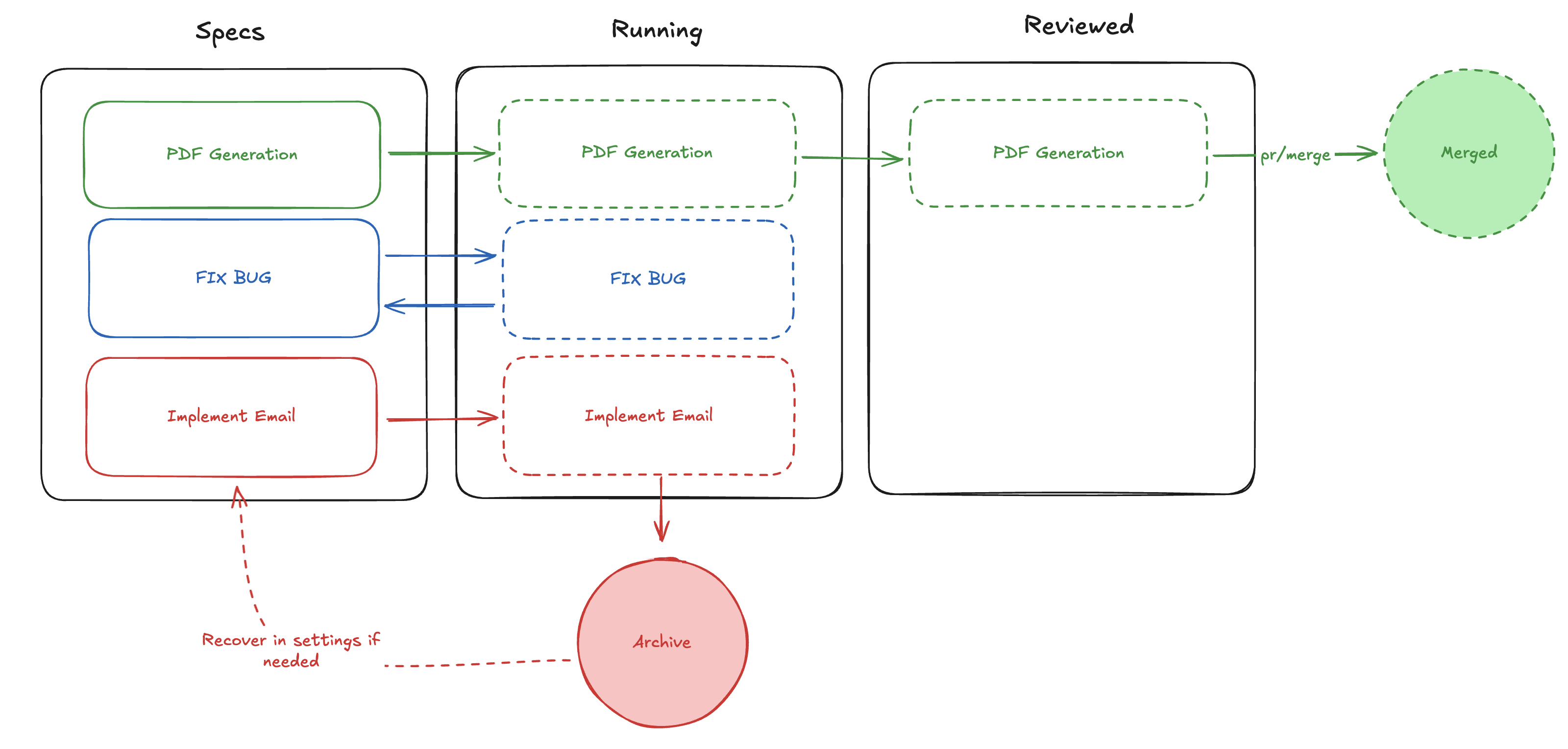 PDF Generation represents the happy path: draft the spec, run the session, review the work, then merge via PR or `⌘⇧M`.
Fix Bug shows how to convert a running session back into a spec when the change is deferred—the worktree and session branch are deleted (uncommitted work is lost) but the plan stays in the backlog for another attempt.
Implement Email demonstrates cancelling a session you no longer need. The worktree is removed and the session moves to the archive, which you can recover from **Settings → Archive** if you change your mind.
***
Next: [Worktrees & Terminals](/core-concepts/worktrees-and-terminals)
PDF Generation represents the happy path: draft the spec, run the session, review the work, then merge via PR or `⌘⇧M`.
Fix Bug shows how to convert a running session back into a spec when the change is deferred—the worktree and session branch are deleted (uncommitted work is lost) but the plan stays in the backlog for another attempt.
Implement Email demonstrates cancelling a session you no longer need. The worktree is removed and the session moves to the archive, which you can recover from **Settings → Archive** if you change your mind.
***
Next: [Worktrees & Terminals](/core-concepts/worktrees-and-terminals)