> ## Documentation Index
> Fetch the complete documentation index at: https://schaltwerk.mintlify.site/llms.txt
> Use this file to discover all available pages before exploring further.
# Workflow
> Best practices for using Schaltwerk effectively
Here are our recommendations for how to get the most out of Schaltwerk.
## Core Principles
Create a dedicated session for each feature or bugfix. Keep work isolated and manageable.
Always review changes with `⌘G` and test before merging. Agents make mistakes.
Cancel sessions with `⌘D` after successful merge to keep your workspace tidy.
Plan and coordinate work in the orchestrator (`⌘1`) before creating sessions.
## Recommended Workflow
### 1. Plan in the Orchestrator
Press `⌘1` to switch to the orchestrator—a special session that stays on your main branch.
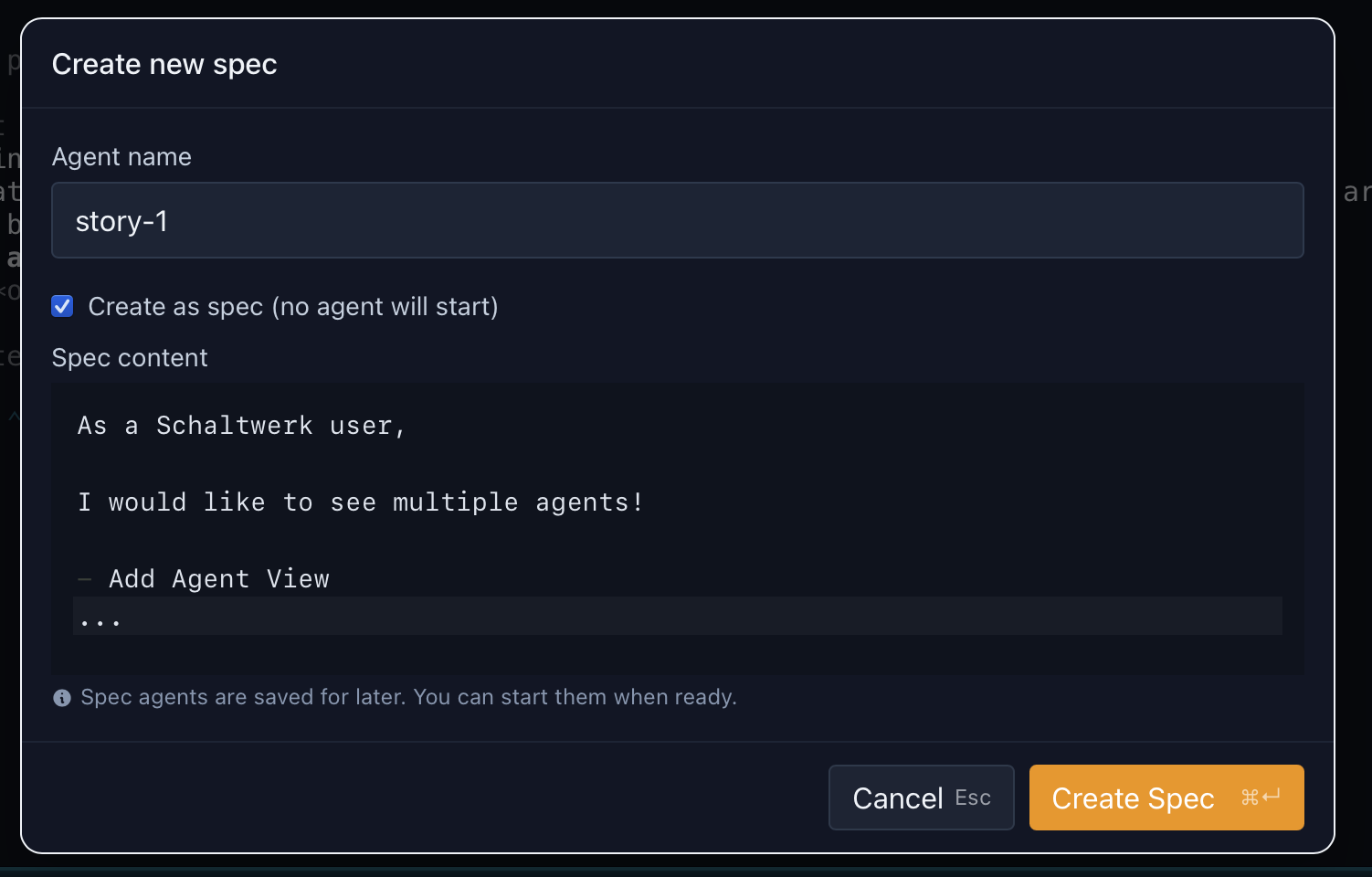
Press `⌘⇧N` to create a planning document:
* Break down the feature into tasks
* List requirements and constraints
* Document the architecture
 Use the orchestrator's agent terminal to:
* Get implementation suggestions
* Generate task breakdowns
* Plan the overall approach
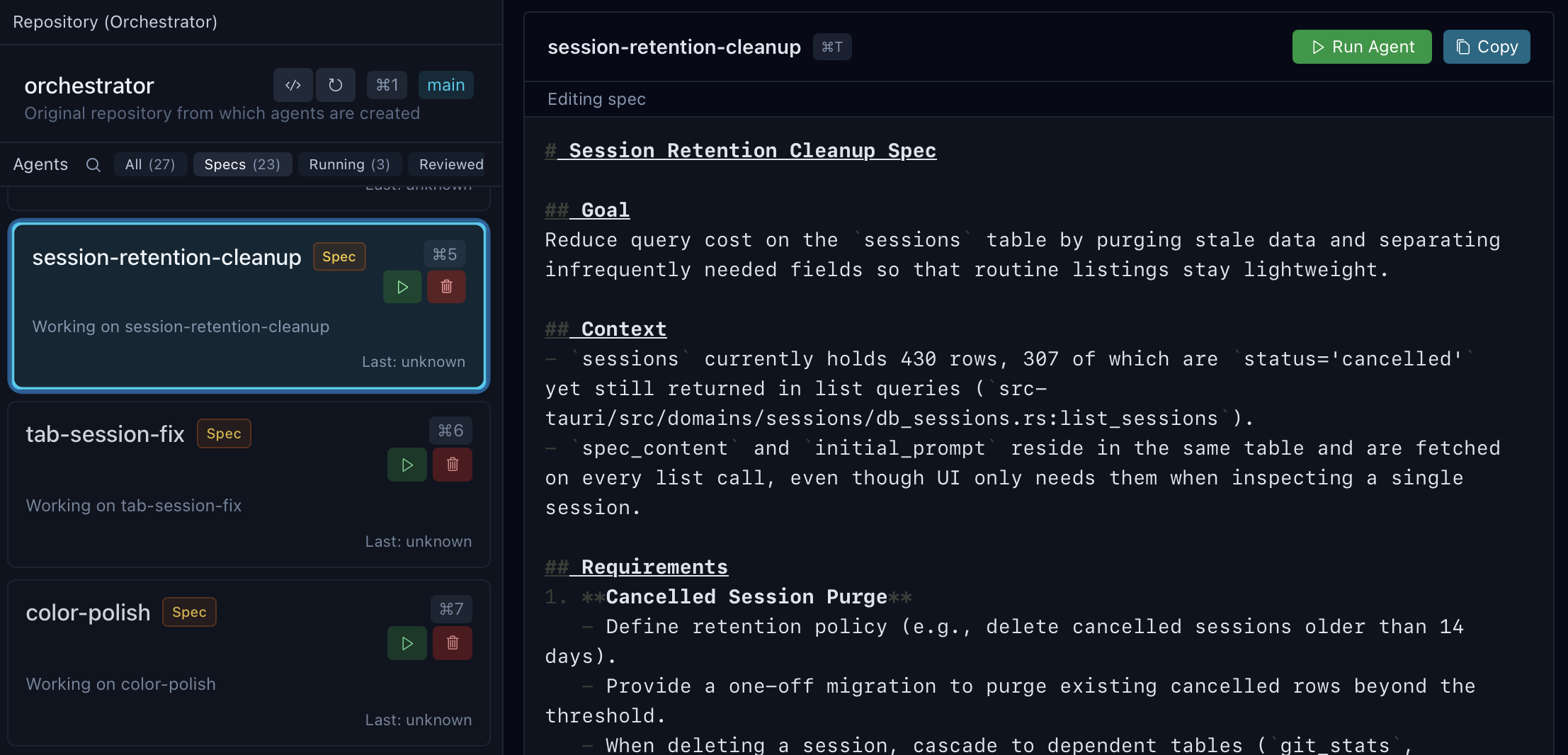
Once you have a plan, create individual sessions for each task
Use the orchestrator's agent terminal to:
* Get implementation suggestions
* Generate task breakdowns
* Plan the overall approach
Once you have a plan, create individual sessions for each task
 ### 2. Create Sessions
For each feature or task:
Open the New Session dialog
Use names like:
* `feature-auth` not `session1`
* `fix-typescript-errors` not `fixes`
* `refactor-api-layer` not `refactor`
Be specific about what you want:
**Good:**
> "Add JWT-based authentication with login, logout, and token refresh endpoints. Use bcrypt for password hashing."
**Bad:**
> "Add auth"
* **Complex refactoring?** Use Claude Code
* **Quick fixes?** Use Codex
* **Experimenting?** Try different agents
**Working on a complex feature?** Sessions branch from the orchestrator's current branch by default. To have multiple sessions branch from a feature branch instead of `main`:
* Switch the orchestrator to your feature branch (e.g., `git checkout feature/auth`), or
* Select the base branch in the New Session dialog
All sessions then merge back to that feature branch, keeping your work organized.
### 3. Monitor Progress
Watch the agent work in real-time:
* See which files it's reading
* Understand its reasoning
* Spot issues early
**Tip:** You can interact with the agent while it works. Just type in the terminal.
Use the bottom terminal to:
* Run tests as the agent works
* Check git status with `git status`
* Inspect changes with `git diff`
* Run build commands
If you've configured a run script:
* Press `⌘E` to start your dev server or test suite
* Monitor output in real-time
* Press `⌘E` again to stop
### 4. Review Changes
Review every change the agent made. Choose your view:
* **Inline** — Toggle "Open diffs inline" to review in the sidebar without leaving terminals
* **Modal** — Full-screen diff for detailed inspection
Check for unintended modifications, commented-out code, or secrets.
Select lines in the diff to add review comments, then click **Finish Review** (`⌘Enter`) to send them to the agent. The agent receives formatted feedback and can address each issue.
Use the **History** tab to see the commit graph and navigate between commits:
### 2. Create Sessions
For each feature or task:
Open the New Session dialog
Use names like:
* `feature-auth` not `session1`
* `fix-typescript-errors` not `fixes`
* `refactor-api-layer` not `refactor`
Be specific about what you want:
**Good:**
> "Add JWT-based authentication with login, logout, and token refresh endpoints. Use bcrypt for password hashing."
**Bad:**
> "Add auth"
* **Complex refactoring?** Use Claude Code
* **Quick fixes?** Use Codex
* **Experimenting?** Try different agents
**Working on a complex feature?** Sessions branch from the orchestrator's current branch by default. To have multiple sessions branch from a feature branch instead of `main`:
* Switch the orchestrator to your feature branch (e.g., `git checkout feature/auth`), or
* Select the base branch in the New Session dialog
All sessions then merge back to that feature branch, keeping your work organized.
### 3. Monitor Progress
Watch the agent work in real-time:
* See which files it's reading
* Understand its reasoning
* Spot issues early
**Tip:** You can interact with the agent while it works. Just type in the terminal.
Use the bottom terminal to:
* Run tests as the agent works
* Check git status with `git status`
* Inspect changes with `git diff`
* Run build commands
If you've configured a run script:
* Press `⌘E` to start your dev server or test suite
* Monitor output in real-time
* Press `⌘E` again to stop
### 4. Review Changes
Review every change the agent made. Choose your view:
* **Inline** — Toggle "Open diffs inline" to review in the sidebar without leaving terminals
* **Modal** — Full-screen diff for detailed inspection
Check for unintended modifications, commented-out code, or secrets.
Select lines in the diff to add review comments, then click **Finish Review** (`⌘Enter`) to send them to the agent. The agent receives formatted feedback and can address each issue.
Use the **History** tab to see the commit graph and navigate between commits:
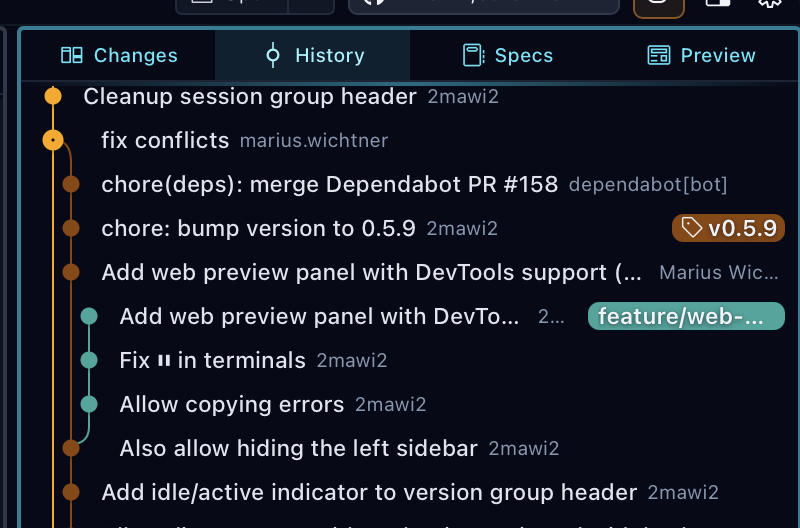 Press `⌘F` to fuzzy-search commits by message, hash, or author.
In the bottom terminal or with `⌘E`:
> Swap `bun` for `npm` if you're using npm scripts.
```bash theme={null}
bun run test # or: npm run test
bun run lint # or: npm run lint
bun run build # or: npm run build
```
Actually use the feature:
* Start the dev server
* Test the happy path
* Try edge cases
* Check error handling
### 5. Mark as Reviewed (Optional)
Marks the session as reviewed
Use `⌘←/→` to switch between All/Specs/Running/Reviewed
### 6. Merge or PR
You can merge from both **Running** and **Reviewed** sessions.
Press **`⌘⇧M`** to merge back to the parent branch. Choose your merge strategy:
Press `⌘F` to fuzzy-search commits by message, hash, or author.
In the bottom terminal or with `⌘E`:
> Swap `bun` for `npm` if you're using npm scripts.
```bash theme={null}
bun run test # or: npm run test
bun run lint # or: npm run lint
bun run build # or: npm run build
```
Actually use the feature:
* Start the dev server
* Test the happy path
* Try edge cases
* Check error handling
### 5. Mark as Reviewed (Optional)
Marks the session as reviewed
Use `⌘←/→` to switch between All/Specs/Running/Reviewed
### 6. Merge or PR
You can merge from both **Running** and **Reviewed** sessions.
Press **`⌘⇧M`** to merge back to the parent branch. Choose your merge strategy:
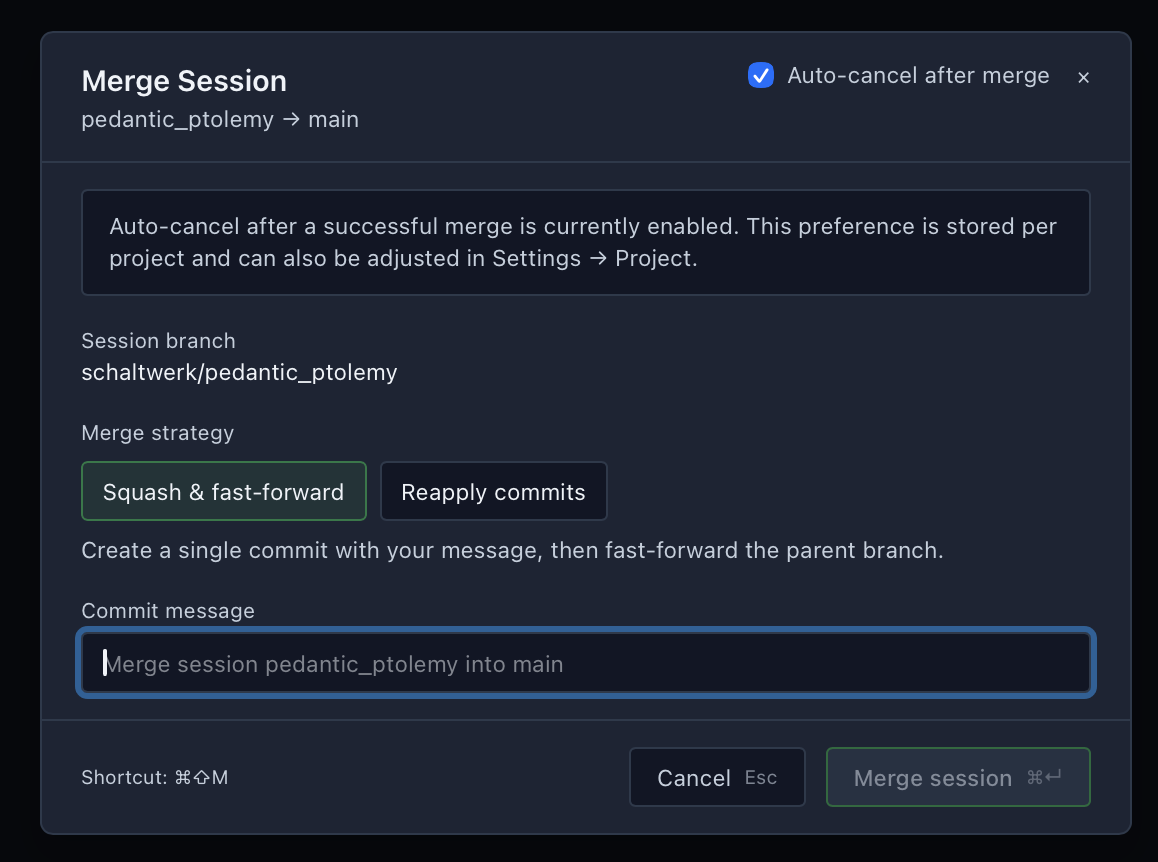 * **Squash & fast-forward** — combines all commits into one with your message
* **Reapply commits** — preserves individual commit history
* **Squash & fast-forward** — combines all commits into one with your message
* **Reapply commits** — preserves individual commit history
 Enable **Auto-cancel after merge** to automatically clean up the session.
Press **`⌘⇧P`** to create a GitHub PR:
* Code review from teammates
* CI/CD validation
* Discussion and approval process
**Requirements:**
* `gh` CLI installed and authenticated
* Push access to remote repo
Schaltwerk opens a PR dialog where you choose **Squash changes** vs **Use existing commits**, set title/body/base branch, and optionally push to a custom PR branch name.
Learn the full workflow (including PR context import and review comments): [Pull Requests](/guides/pull-requests)
### 7. Clean Up
After successful merge:
Cancel the session and remove the worktree
Schaltwerk asks for confirmation to prevent accidents
The isolated git worktree and branch are deleted
Want orchestration playbooks and multi-agent patterns? Jump to the [Advanced Workflows](/guides/advanced-workflows) guide.
## Navigation Tips
* `⌘1` - Orchestrator
* `⌘2-9` - Sessions 1-8
* `⌘↑/↓` - Cycle through sessions in current filter
* `⌘←/→` - Switch between All/Specs/Running/Reviewed
* See exactly what you need when you need it
* `⌘⇧←/→` - Switch between project tabs
* Perfect for frontend ↔ backend workflows
* See the [multi-project guide](/guides/multi-project) for full tips
* `⌘T` - Focus agent terminal
* `⌘/` - Focus your shell
* `⌘E` - Run configured script
## Common Patterns
### Feature Development
```
1. ⌘1 (Orchestrator) → Plan the feature
2. ⌘⇧N → Create spec with requirements
3. ⌘N → Start session with detailed prompt
4. ⌘T → Monitor agent progress
5. ⌘G → Review changes
6. ⌘E → Run tests
7. ⌘R → Mark as reviewed
8. ⌘⇧P → Create PR
9. [After merge] ⌘D → Clean up
```
### Bug Fix
```
1. ⌘N → Create session: "Fix bug in X"
2. ⌘/ → Reproduce the bug manually
3. ⌘T → Let agent investigate and fix
4. ⌘/ → Verify the fix works
5. ⌘G → Review the changes
6. ⌘R → Mark reviewed
7. ⌘⇧M → Merge directly (if solo)
8. ⌘D → Clean up
```
### Refactoring
```
1. ⌘1 → Discuss approach with orchestrator
2. ⌘⇧N → Create spec documenting the refactor plan
3. ⌘N → Start session with clear constraints
4. ⌘T → Watch agent work
5. ⌘E → Run test suite frequently
6. ⌘G → Carefully review all changes
7. ⌘/ → Run tests again manually
8. ⌘R → Mark reviewed
9. ⌘⇧P → Create PR for team review
10. [After approval + merge] ⌘D → Clean up
```
## Things to Avoid
**Don't:**
* Merge without reviewing (`⌘G` first!)
* Cancel sessions before merging (use `⌘S` to recycle the spec—this deletes the session worktree/branch and loses uncommitted changes)
* Create vague prompts like "fix it"
* Forget to run tests before marking reviewed
* Let sessions pile up—clean up after merging
## Next Steps
Master all keyboard shortcuts
Configure agents and environment
Understand the architecture
Fix common issues
Enable **Auto-cancel after merge** to automatically clean up the session.
Press **`⌘⇧P`** to create a GitHub PR:
* Code review from teammates
* CI/CD validation
* Discussion and approval process
**Requirements:**
* `gh` CLI installed and authenticated
* Push access to remote repo
Schaltwerk opens a PR dialog where you choose **Squash changes** vs **Use existing commits**, set title/body/base branch, and optionally push to a custom PR branch name.
Learn the full workflow (including PR context import and review comments): [Pull Requests](/guides/pull-requests)
### 7. Clean Up
After successful merge:
Cancel the session and remove the worktree
Schaltwerk asks for confirmation to prevent accidents
The isolated git worktree and branch are deleted
Want orchestration playbooks and multi-agent patterns? Jump to the [Advanced Workflows](/guides/advanced-workflows) guide.
## Navigation Tips
* `⌘1` - Orchestrator
* `⌘2-9` - Sessions 1-8
* `⌘↑/↓` - Cycle through sessions in current filter
* `⌘←/→` - Switch between All/Specs/Running/Reviewed
* See exactly what you need when you need it
* `⌘⇧←/→` - Switch between project tabs
* Perfect for frontend ↔ backend workflows
* See the [multi-project guide](/guides/multi-project) for full tips
* `⌘T` - Focus agent terminal
* `⌘/` - Focus your shell
* `⌘E` - Run configured script
## Common Patterns
### Feature Development
```
1. ⌘1 (Orchestrator) → Plan the feature
2. ⌘⇧N → Create spec with requirements
3. ⌘N → Start session with detailed prompt
4. ⌘T → Monitor agent progress
5. ⌘G → Review changes
6. ⌘E → Run tests
7. ⌘R → Mark as reviewed
8. ⌘⇧P → Create PR
9. [After merge] ⌘D → Clean up
```
### Bug Fix
```
1. ⌘N → Create session: "Fix bug in X"
2. ⌘/ → Reproduce the bug manually
3. ⌘T → Let agent investigate and fix
4. ⌘/ → Verify the fix works
5. ⌘G → Review the changes
6. ⌘R → Mark reviewed
7. ⌘⇧M → Merge directly (if solo)
8. ⌘D → Clean up
```
### Refactoring
```
1. ⌘1 → Discuss approach with orchestrator
2. ⌘⇧N → Create spec documenting the refactor plan
3. ⌘N → Start session with clear constraints
4. ⌘T → Watch agent work
5. ⌘E → Run test suite frequently
6. ⌘G → Carefully review all changes
7. ⌘/ → Run tests again manually
8. ⌘R → Mark reviewed
9. ⌘⇧P → Create PR for team review
10. [After approval + merge] ⌘D → Clean up
```
## Things to Avoid
**Don't:**
* Merge without reviewing (`⌘G` first!)
* Cancel sessions before merging (use `⌘S` to recycle the spec—this deletes the session worktree/branch and loses uncommitted changes)
* Create vague prompts like "fix it"
* Forget to run tests before marking reviewed
* Let sessions pile up—clean up after merging
## Next Steps
Master all keyboard shortcuts
Configure agents and environment
Understand the architecture
Fix common issues