

.schaltwerk/worktrees/. Think of it as spinning up a miniature sub-team with their own clone of the repo: the agent can install dependencies, run tests, and even break things without disturbing your main branch. This page explains why that isolation matters, how the built-in terminals behave, and the handful of tools you have for jumping in manually.
Why Worktree Isolation Matters
- Autonomous execution – Agents run dependency installs (bun install, pip install, cargo, etc.), migrations, or custom binaries per session without conflicting with each other.
- Safe experimentation – If an idea fails, convert the session back to a spec (
⌘S) or cancel it (⌘D) and the entire worktree disappears—no cherry-picks required. - Safe experimentation – If an idea fails, convert the session back to a spec (
⌘S) or cancel it (⌘D). Both actions delete the session’s worktree and branch, so make sure anything you need is committed or copied first. - Parallel feature teams – Multiple agents (or humans) work in isolation, then merge back on your schedule (see Advanced Workflows for orchestration patterns).
Terminal Behavior
Schaltwerk attaches a pair of PTY terminals to every session so agents and humans can work side by side.Top Terminal (Agent)
Runs the configured agent process inside the session’s worktree as soon as setup finishes.
Bottom Terminal (You)
Spawns a regular shell rooted in the same worktree—perfect for tests, linters, or quick edits.
Switching sessions keeps terminals alive—commands continue running in the background.
The orchestrator tab uses your repository root (no extra worktree), so commands there modify the primary branch directly.
Jumping in Manually
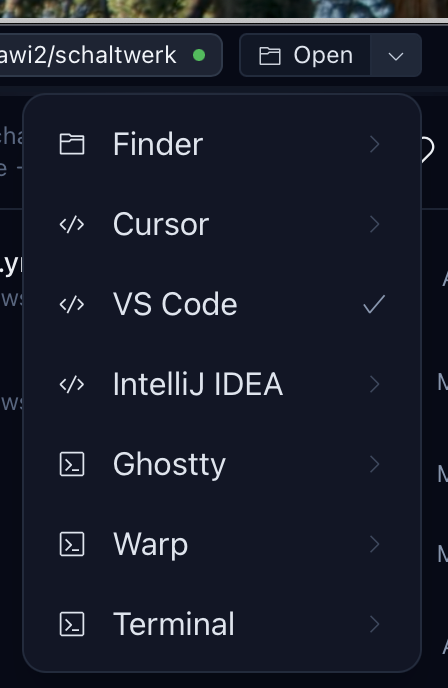
Need hands-on control? Use the Open button in the top bar.- Open session worktree – Pick VS Code, Cursor, Zed, your terminal, etc., and Schaltwerk launches the session’s worktree there so you can pair-program with the agent. Zed’s Agent Client Protocol (ACP) is supported so future automations can attach directly to the editor from the session view.
- Open orchestrator – From the orchestrator tab, Open launches the main/feature branch directly (ideal for finishing tricky fixes yourself).
Run Mode (⌘E)
Configure Run Mode per project via Settings → Run & Environment → Run Script with a command likebun run test / npm run test or bun run dev / npm run dev. Once set:
- Press
⌘Eor click Run in the bottom terminal to execute the script inside the session worktree. - Schaltwerk shows the running state, so you can see which sessions are testing or serving right now.
- Agents keep working in the top terminal while you observe logs below.
Dependencies & Shared Services
- Each worktree keeps its own
node_modules, virtualenv, or build artifacts. Let agents (or setup scripts) install what they need locally. - If you rely on shared resources (like device simulators or Docker containers), coordinate them the same way you would with multiple teammates: start parallel instances or serialize access via your specs.
Multi-Project Tabs
Running multiple repositories? Open each via the Home button. Every tab gets its own orchestrator, sessions, and terminals.- Switch between projects with
⌘⇧←/⌘⇧→. - Worktree cleanup is per project—review and cancel sessions in each tab to stay on top of disk usage.
Previous: Sessions & Specs