

First Session Quick Start
1
Open orchestrator
Press
⌘1 or click orchestrator in sidebar2
Create spec
Press
⌘⇧N and describe what you want the agent to build3
Start session
Press
⌘N to create worktree, branch, and terminals4
Monitor agent
Top terminal shows agent progress automatically
5
Test and review
Run tests in bottom terminal, then press
⌘R to mark as reviewedLearn the Layout
Top Bar
- Tabs for each open project
- Gear icon for Settings
- Open button (
⌘⇧O) to launch the active worktree or orchestrator branch in your editor/terminal - Keep-awake button (coffee icon) to prevent sleep during long sessions—gray (disabled), green (active), amber (auto-paused when idle)
Sidebar
- Orchestrator entry
- Session filters (Specs/Running/Reviewed)
- Quick actions for starting agents or creating specs
- Collapse/expand: click the toggle button or press
⌘\/Ctrl+\
Center
- Terminals and diff/review panels
- Grouped per session
⌘\.
The keep-awake button (coffee icon in top bar) prevents your machine from sleeping during long-running agent tasks. It shows amber when auto-paused because all sessions are idle.
Create a Spec
1
Select orchestrator
Press
⌘1 to work on the main repo branch2
Create new spec
Click Create Spec in sidebar footer or press
⌘⇧N3
Write requirements
Fill out the markdown prompt with:
- Requirements
- Test expectations
- Acceptance criteria
4
Save for later
Specs stay in the orchestrator until you promote them
- Edit anytime
- Duplicate for variations
Start a Session
1
Select spec
Highlight the spec in the sidebar
2
Start agent
Click Start Agent or press
⌘N3
Worktree created
Schaltwerk creates:
- New git worktree in
.schaltwerk/worktrees/<session-name>/ - Dedicated branch with project’s branch prefix
- Two PTY terminals
4
Setup runs
- Configured worktree setup script runs once
- When complete, top terminal launches your agent
- Agent receives the spec content as initial prompt
The session moves to the Running filter and opens two terminals the first time you view it.
Run Your Agent
- Top Terminal
- Bottom Terminal
Agent Process
- Streams the agent process automatically
- Use Restart action to reload with new prompt/config
- Agent receives spec content as initial instructions
Run Mode
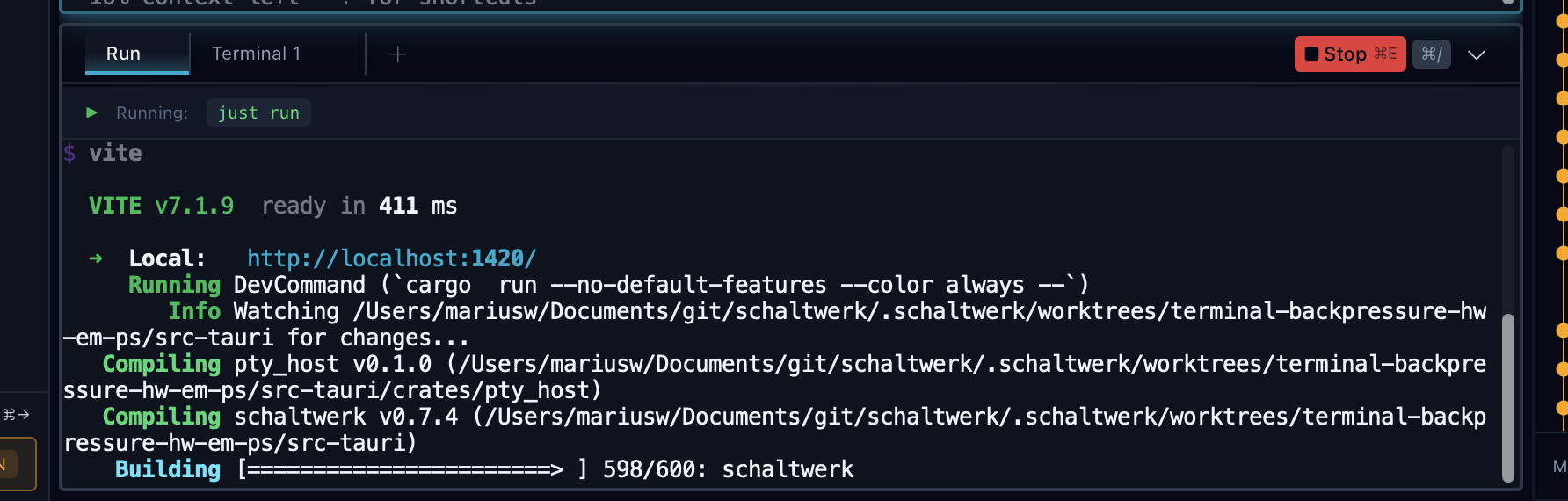
Configure a run script via Settings → Run & Environment → Run Script (e.g.,bun run dev or npm run dev). Then press ⌘E to launch it—no retyping needed. This lets you quickly verify each agent’s changes: ⌘E → manually test → ⌘E to stop → switch sessions → repeat.
Web Preview
When your run script starts a dev server, click the localhost URL in the terminal to open Schaltwerk’s built-in Web Preview. The preview panel displays your site directly in the app—no browser switching needed. Use the element picker to inspect UI and send HTML snippets to the agent for feedback.See the full Web Preview guide for URL formats, zoom controls, and element picker details.
Review the Work
Switch Sessions
⌘1–9to jump to specific session⌘↑/⌘↓to cycle through sessions- Terminals stay alive when you change focus
Inspect Changes
- Press
⌘Gto open the diff viewer - Toggle Open diffs inline to review in sidebar
- Add comments and send to agent with
⌘Enter
Run Tests
- Execute test suite in bottom terminal
- Or use Run Mode (
⌘E) - Verify before marking as reviewed
External Editor
- Click Open (
⌘⇧O) in top bar - Launches the session worktree (or orchestrator branch) in your chosen app
- Make manual edits or finish tricky changes alongside the agent
Inline Diff Review
Enable Open diffs inline in the Changes tab to review without leaving your terminals: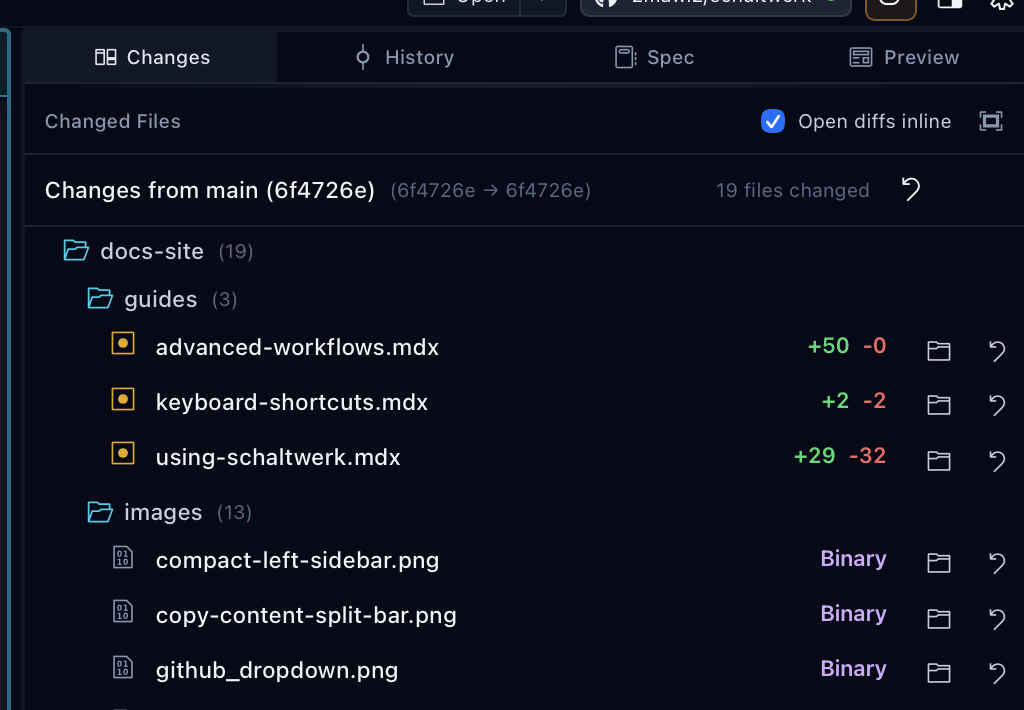
Copy Context for External AI
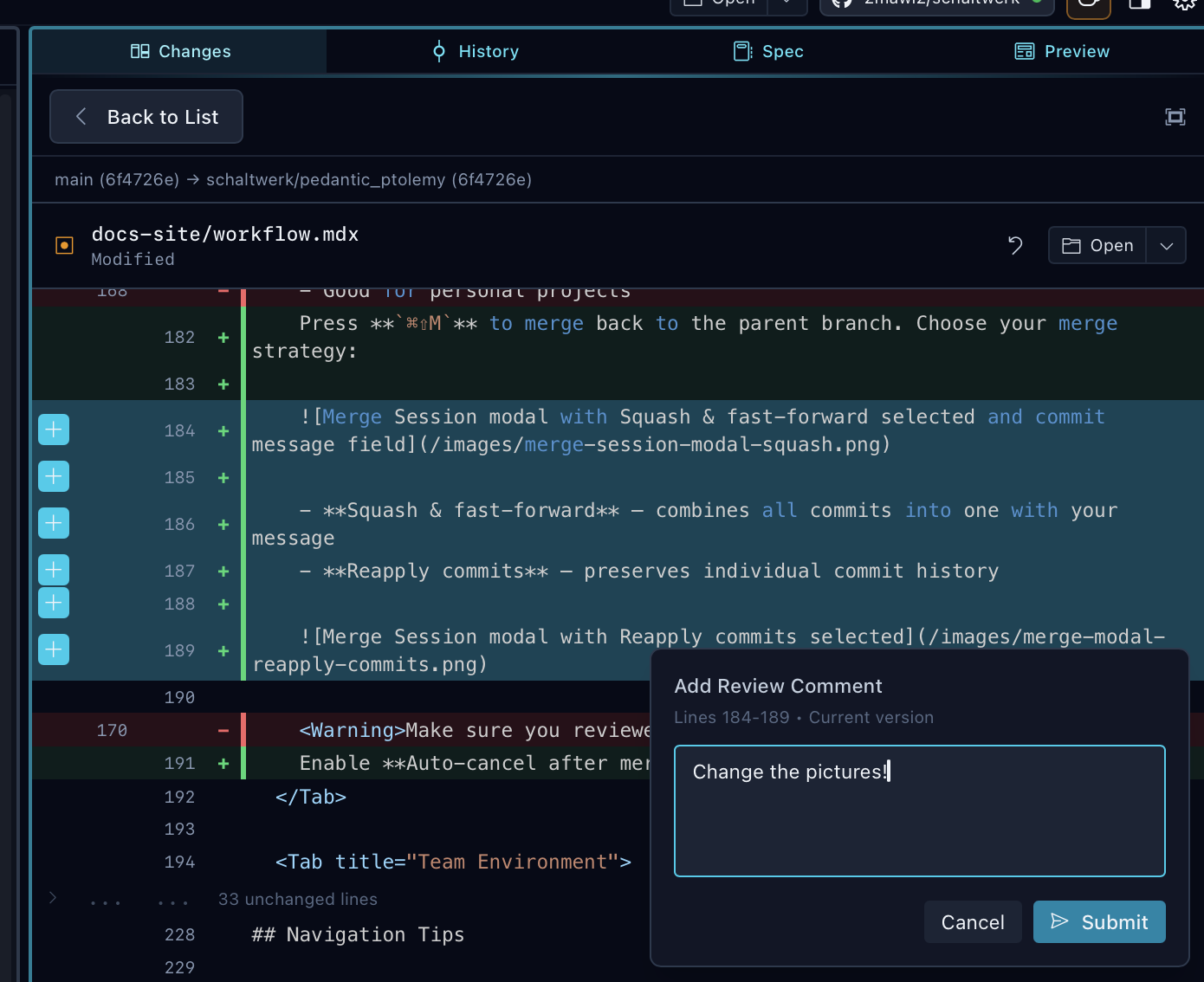
Use the Copy Context bar to bundle session content for pasting into external AI tools—useful for code reviews, debugging tricky problems with web-based research agents, or leveraging models not available via CLI.
- Spec — include the session’s spec/prompt
- Diff — include unified diffs of changed files
- Files — include full file contents
Mark as Reviewed (Optional)
Marking as reviewed is optional—you can merge or create PRs directly from running sessions.1
Verify tests pass
Run your project’s test suite in the bottom terminal
2
Mark reviewed
Press
⌘R or click the checkmark action3
Session moves to Reviewed
Session badge turns green and appears in Reviewed filter
4
Choose next action
From session header actions:
- Create GitHub pull request (
⌘⇧P) - Merge directly (
⌘⇧M) - Continue editing in external editor
Convert Back to a Spec
Need to scrap a run but keep the notes?- Worktree is removed (all uncommitted changes are lost)
- Session branch is deleted from
.schaltwerk/worktrees - Markdown spec is preserved
- Session returns to Specs filter
- Can be restarted later as a fresh session
Perfect for deferring work or archiving exploratory sessions.
Merge and Clean Up
1
Merge the branch
Press
⌘⇧M to merge directly or ⌘⇧P to create a PR. Works from both running and reviewed sessions.2
Cancel session
Press
⌘D or click Cancel Session (or enable Auto-cancel after merge)3
Cleanup happens
- Worktree is removed from
.schaltwerk/worktrees/ - Terminals are closed
- Session disappears from sidebar
4
Recreate if needed
You can always recreate from:
- The spec (if preserved)
- Git history (if branch still exists)
Schaltwerk never cancels sessions automatically, so it’s safe to keep a branch around while you validate changes.
Tips for Smooth Sessions
Small Changes
Keep specs focused on small, testable changes that agents can complete confidently
Parallel Work
Use separate sessions for competing implementations and pick the best result
Orchestrator Power
The orchestrator can coordinate multiple agents in parallel while you monitor progress
Iterate Settings
Visit Agent Setup to tweak binaries, environment variables, or project setup scripts
Common Workflows
- Bug Fix
- New Feature
- Refactoring
- Exploration
- Create spec describing the bug and expected behavior
- Start session and let agent investigate
- Review proposed fix and run tests
- Mark as reviewed and create PR