

Getting Started
1
Start a dev server
Run your development server in the terminal (e.g.,
npm run dev, bun run dev)2
Click the localhost link
When the server logs a URL like 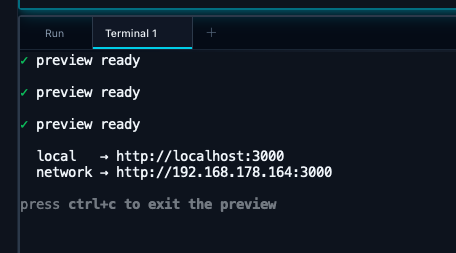
http://localhost:3000, click it in the terminal output3
Preview opens automatically
The right panel switches to the Preview tab and loads your site
By default, clicking localhost URLs in terminals opens them in the preview panel. To open them in your browser instead, go to Settings → Run & Environment and disable “Preview localhost on terminal click”.
Developing Web Apps
The preview panel lets you see your web app while agents make changes. Hot module replacement works seamlessly—as the agent modifies code, the preview updates automatically. Supported URL formats:- Bare port:
3000→http://localhost:3000 - Hostname:
localhost:3000→http://localhost:3000 - Full URL:
http://localhost:3000/dashboard
Giving Feedback with Element Picker
The element picker lets you select any element on the page and send its HTML to the agent—perfect for pointing out specific UI issues.1
Click the element picker button
In the preview toolbar, click the element picker button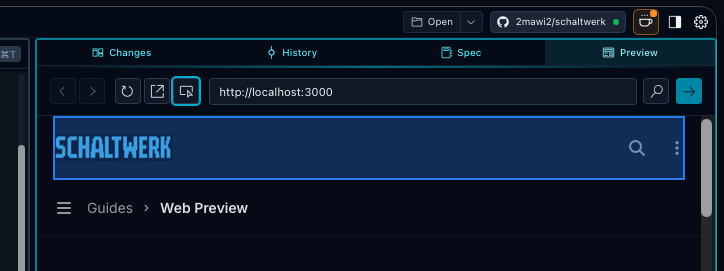
2
Hover and click an element
Move your cursor over the page—elements highlight as you hover. Click to select one.
3
HTML appears in the terminal
The selected element’s HTML is pasted as a code block in the active terminal, ready for the agent to see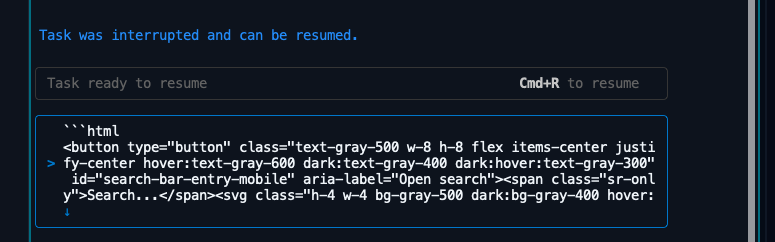
4
Continue the conversation
Now you can tell the agent exactly what to change: “Make this button blue” or “Add padding to this card”
Toolbar Controls
From left to right:- Back / Forward arrows — Navigate through your browsing history
- Refresh — Reload the current page
- Open external — Open the URL in your default browser
- Element picker — Enable element selection mode
- URL input — Enter a URL or port number
- Zoom — Adjust the preview scale (50%–200%)
⌘= zoom in, ⌘- zoom out, ⌘0 reset zoom
Multiple Sessions
When running multiple sessions with dev servers, use different ports to avoid conflicts:Limitations
- No DevTools — For full debugging, click the external link button to open in your browser